Quick Start
Software Library Energy Meter (SLEM) : An Automated Energy Measurement Tool for Software Libraries
Tool Description
SLEM is an energy measurement tool
designed to measure energy consumption seamlessly across
various software frameworks, libraries, and custom scripts.
At its core, SLEM utilizes the Intel Running Average Power
Limit (RAPL) interface, a widely recognized mechanism for
monitoring and reporting the energy consumption of vari-
ous system-on-chip (SoC) power domains.
The
tool features a user-friendly interface that eliminates the
need for manual script writing, allowing users to seamlessly
specify input parameters for API-level energy consumption
measurements.
The current version of the tool supports only Linux , with
plans to extend support to Windows and MacOS in future
updates.
Installation
Requirements
- Intel processors from the Celeron, Pentium, Core i3, i7, i9, and Xeon series, featuring the Sandy Bridge or newer architecture.
- Linux distribution Debian based operating system. We have tested on Ubuntu 20.04.6 LTS
- Python version 3.7.0 and above. Install from here
Github Repo
Our entire codebase is in this Github repo : https://github.com/rishalab/SLEM.git, you can either clone or download it to check it.
Usage
- Granting Access to Energy RAPL for Experimentation To measure energy consumption using RAPL domains, ensure that your system provides the necessary read access to the powercap files. By default, these files are often restricted, and you may need to grant temporary access during experiments.
- Navigate to the src folder:
- Run the main.py file:
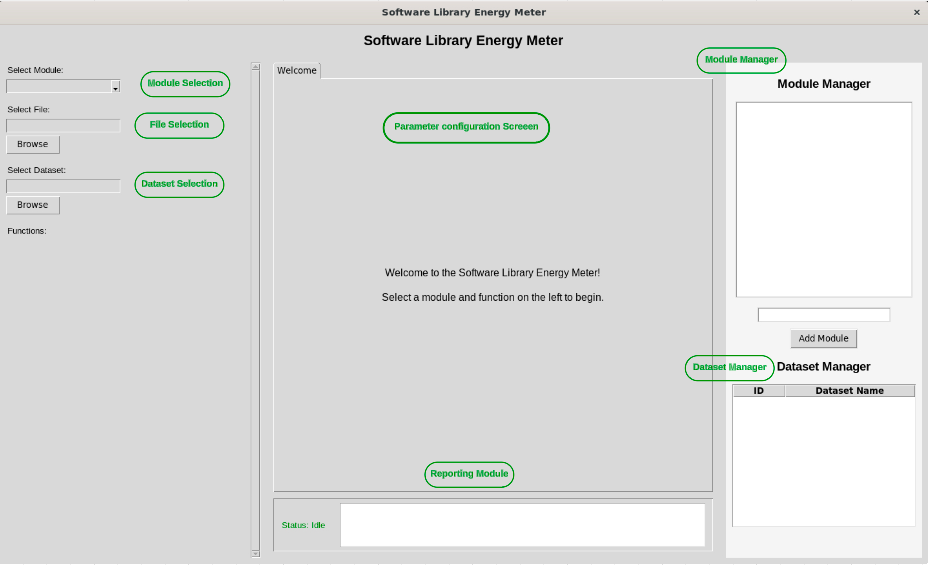
- Upon running main.py, the following screen will appear:
- The interface contains the following sections:
- Module Selection
- File Selection
- Dataset Selection
- Module Manager
- Dataset Manager
- Reporting Module
- Parameter Configuration Screen
- To measure the energy consumption of a specific module (e.g., numpy), follow these steps:
- Enter the module name in the Module Manager (e.g., numpy).
- Click the Add button.
- The module will then be available in the Module Selection dropdown on the left side of the screen.
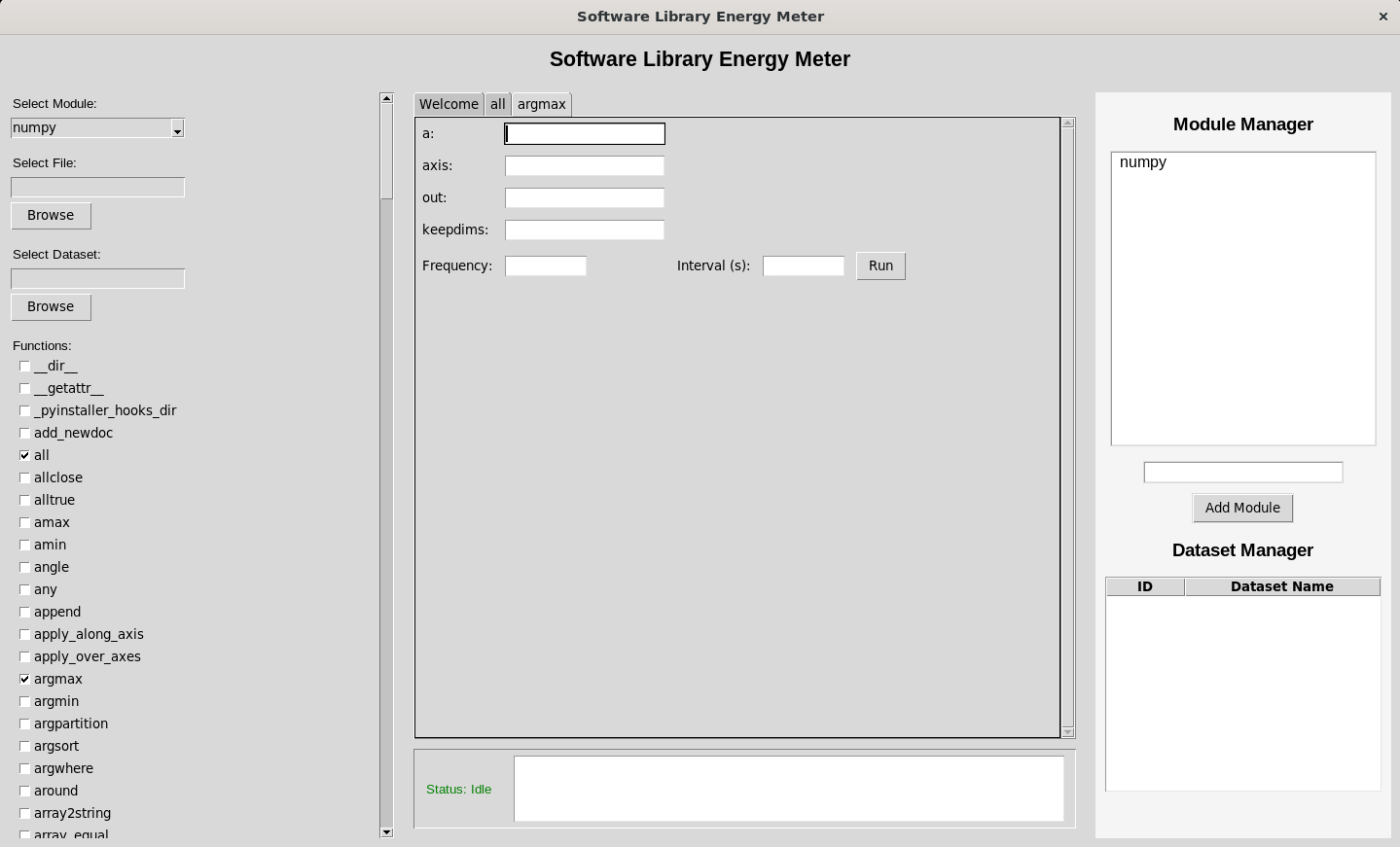
- Select the desired module from the dropdown to display all its functions, as shown below:
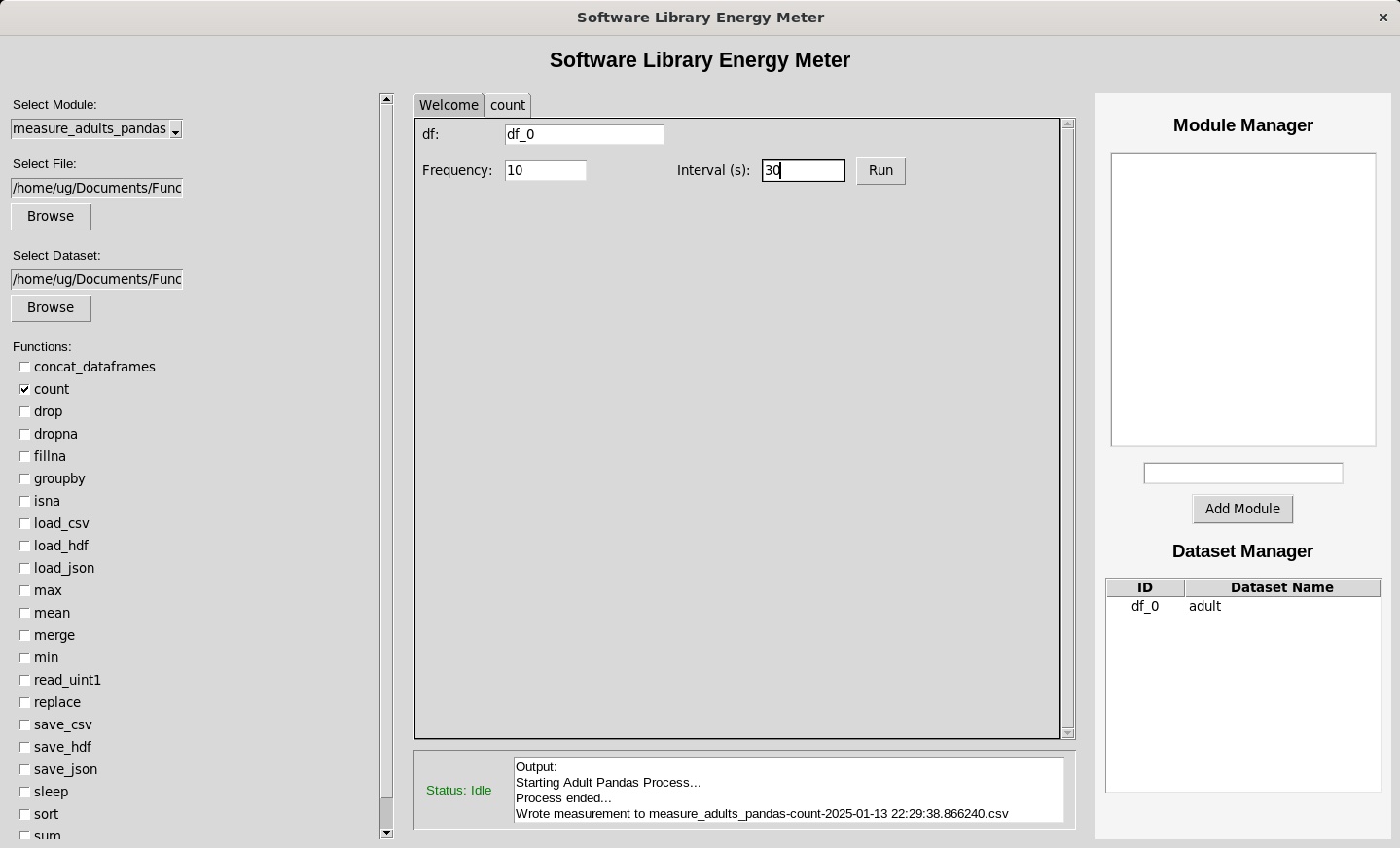
- Select the checkbox of the function you want to measure. The parameters of the selected function will appear in the Parameter Configuration Screen.
- Adjust the parameters as needed, specify the frequency (number of iterations), and set the interval time (time gap between iterations in seconds).
- Click the Run button to execute the experiment. The results will be displayed in the Reporting Module at the bottom.
- You can also define your own functions in a Python file (e.g., measure_energy.py).
- Click the Browse button in the File Selection module to navigate to and select your file.
- Select your file from the Module Selection dropdown. All defined functions in the file will be displayed below.
- To upload a dataset:
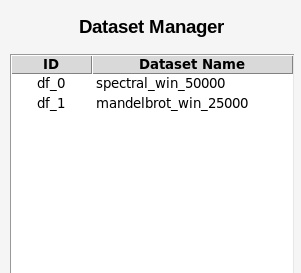
- Click the Browse button in the Dataset Manager section and select the desired dataset.
- Each loaded dataset is assigned a dataframe ID (e.g., df_0), visible in the Dataset Manager section at the bottom right.
- The dataframe ID (e.g., df_0) can be used as an argument in functions requiring dataset input.
Architecture Overview
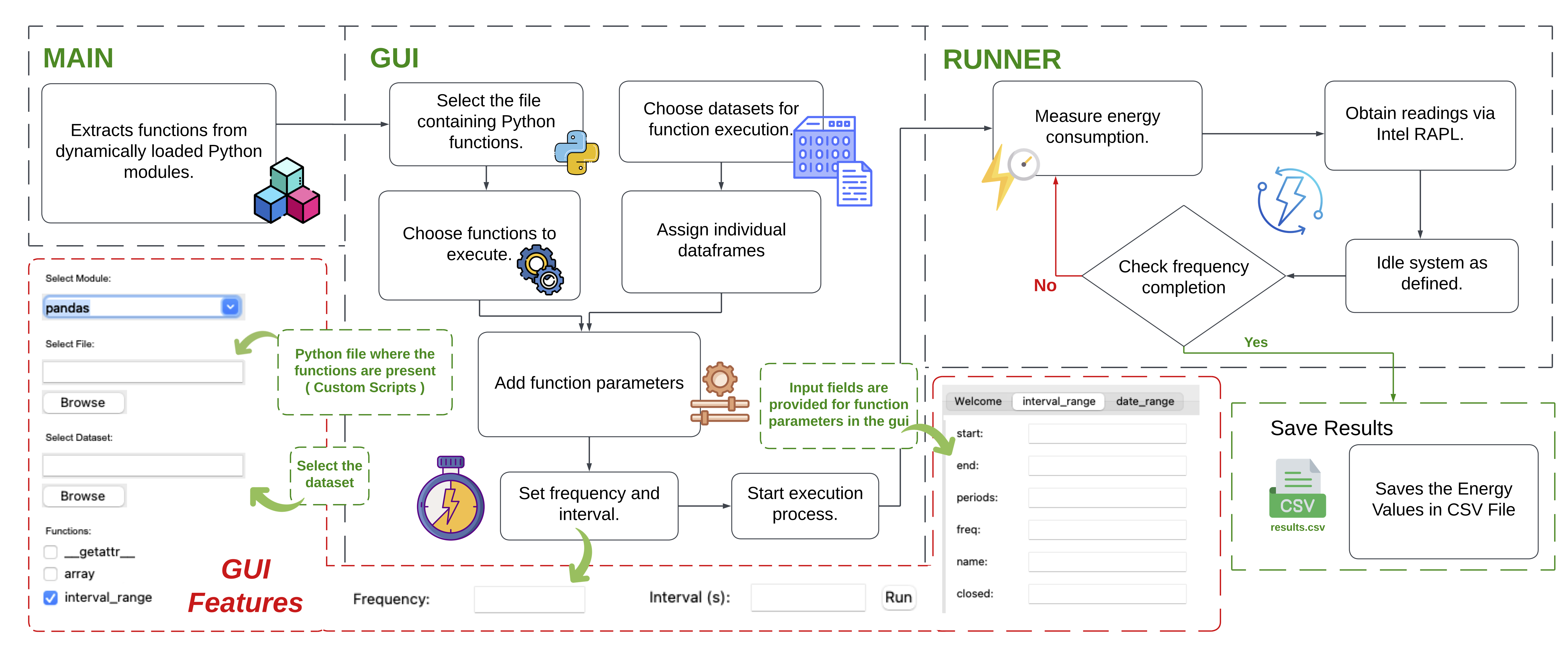
The tool consists of three primary components, as shown in Fig. 1 and described below:
- Energy Measurement Engine (Main):
At the core of SLEM is the energy measurement module, which utilizes the powercap interface to interact with hardware-level interfaces and collect real-time energy consumption data for specific functions. - Graphical User Interface (GUI):
A user-friendly GUI enables seamless interaction, providing an intuitive platform for selecting files, datasets, functions, and parameters for profiling. - Execution and Reporting Module (RUNNER):
This component handles the execution of selected functions with user-defined parameters and generates energy consumption reports for analysis.
Functional Workflow
- File and Dataset Selection:
Upon launching SLEM, the user is presented with an interface to select the source file, the modules within the file, and the datasets. This step ensures that the tool is adaptable for various projects and applications. - Function Identification:
Once a file is loaded, the tool analyzes the source code to extract the list of functions. These functions are displayed to the user in a selectable list format. - Parameter Configuration:
After selecting a function, the user is prompted to configure profiling parameters:- Frequency: The number of times the selected function is executed to minimize random errors and improve precision.
- Time Interval: The duration between consecutive runs of the selected function, enabling precise control over execution timing.
- Execution:
A Run button initiates the execution of the selected function with the configured parameters. The energy measurement engine tracks the energy consumption in real-time during the execution. - Results Visualization:
The energy profiling results are stored in a CSV file generated after the function is run. This file contains package, core, uncore, and DRAM energy values.
Example Functionality
-
Testing for custom script in the SLEM tool
Goal
Limitations
Results
Demo Video
Contributors
Akilesh P, Shivadharshan S, Rajrupa chattaraj, Sridhar Chimalakonda, Vibhu Saujanya Sharma, Vikrant Kaulgud